As a designer and online business owner, I’m always balancing daily admin work, dozens of client projects, digital products, social media, and all the other things we handle in business. What’s my lifesaver? ClickUp.
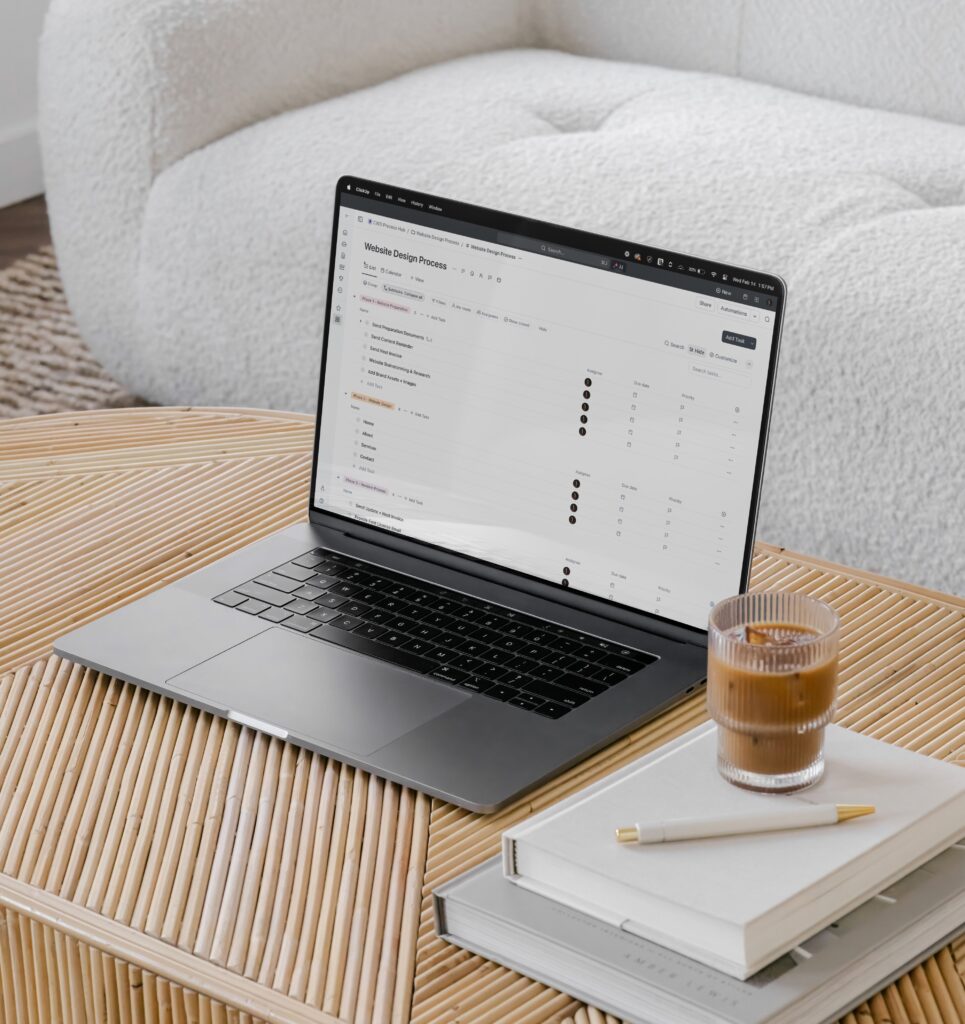
ClickUp is an amazing task & project management tool for any business owner who needs to keep track of their time, projects, or daily tasks. I used to be all about my written planner. But when my tasks started happening more often and got repetitive, I realized I needed something that could automate things and tidy up my to-do list. I tried many platforms like Asana, AirTable, and Notion, but they didn’t have what I needed. ClickUp was the platform that truly changed the game for me! There’s so much to cover, but this will be focused on my own setup as a designer.
When I shared my design process on Instagram, I got A TON of messages from other designers! I didn’t realize that so many are looking for a platform that’s not only easy for them, but easy for their clients to use. In this post, I’ll show you my entire ClickUp space and how I handle client projects as a designer. As a verified ClickUp Power User, you can trust that I use it often and know what works well. Want to learn how to use ClickUp for project management? Keep on reading!
Try Out Their “Free Forever” Plan!
Ready to get started? You can try their free forever plan to see if it’s for you. But I bet you’ll love it. Check out their free plan right here!
Disclaimer: I may earn a commission if you buy through my affiliate links. But I only recommend products I really believe in and use myself. For more info on affiliate links, check out my terms of use.
The ClickUp Hierarchy
Before diving in, I always recommend taking a moment to think about what your business really needs. ClickUp isn’t a magic fix; it won’t solve all your task management problems right away or be perfect from the start. Setting up your ClickUp hierarchy well is crucial for a system you’ll enjoy using daily, and that will actually benefit your business. I recommend first drawing/writing out your process first, instead of trying to figure it out as you go. Here’s a quick look at the typical hierarchy and how I use it as a designer:
- Workspace: This is where you’ll organize everything in ClickUp. It’s like the home for your entire business. This will be created once you activate your ClickUp account.
- Spaces: These are for organizing different teams or departments. Each space has its own folders. As a solo business owner, my spaces include Client Projects, Digital Products, Marketing, Template Hub, and Personal.
- Folders: You’ll find these within Spaces to sort your task lists. They can have specific permissions or team members. For instance, I have a folder for each design client in my Client Projects Space.
- Lists: These help you manage your tasks and come with their own settings.
- Tasks: You have three different task options based on your project’s size. The main task is for your primary to-dos, each with unique descriptions, comments, statuses, fields, tags, and more. You can add subtasks and even more detailed nested subtasks. This helps you break down the work into smaller parts to finish specific phases or milestones.
- Checklists: This is the last step you can add to any task. It’s great for following a set process for a task!


Setting Up ClickUp For Project Management
1. Creating & Setting Up a ClickUp Workspace
Once you’ve signed up for ClickUp and picked the pricing plan that’s best for you, you’ll have a blank canvas to start from. Create your own unique workspaces and take your time to make it your own. ClickUp can be overwhelming at first since it has SO many amazing features, but once you actually have it setup the way you want – it’ll do most of the work for you. I suggest also checking the general settings to tailor them to your preferences. You may want to turn off some notifications, change colors, activate specific hotkeys, and more.
2. Installing ClickApps
When you start building your spaces, you’ll need to know which apps you’ll need for your business. They offer 35+ awesome ClickApps that you can choose from, depending on your business needs. It helps to know all the app options they have before you start setting things up. You can choose which ones are turned on/off, but some ClickApps I use as a designer include:
- Custom Fields: You can make custom fields such as drop downs, checkboxes, links, etc.
- Time Tracking: Track time for individual tasks! They also offer “time estimates” app too.
- Automations: Create your own automations for repetitive tasks!
- Email: Send and receive emails all within one platform.
- Tags: Add tag labels to tasks to stay organized.
- Pulse: Want to know how long one of your team members were on ClickUp today (aka working)? This will tell you 👀

My top tip: begin with the basics. A lot of designers were telling me that they ended up overwhelmed and confused trying to setup their own ClickUp. But many times, people will focus too much on setting it up to perfection and using all of the features they think they’ll need. BUT you can always customize as you go along! As your business expands, you might find you need more features.
3. Exploring ClickUp Templates
You can easily view their Template Center by clicking on the ellipsis beside any Space, Folder or List. You’ll have access to a variety of ready-to-use templates that you can implement. But keep in mind that some of these templates are a bit complex, offering a lot of Custom Fields you might not need. I personally felt the templates we’re too overwhelming for me. I ended up building mine from scratch, and I just used some templates as inspiration. As mentioned, I recommend starting with basic features. As you get used to ClickUp, you can add more detail to your templates. Update and save them as you go!
I personally have my own templates called “Website Design Process” & “Brand Design Process” which each have their own unique tasks, subtasks and descriptions. When I get a new client, I just make a folder with my template, and everything is set up in seconds. It’s a huge time-saver!
Hot Tip: Create a central hub for your business processes in advance! Plan out your process for specific parts of your business, and create a library of these templates for you and your team to use in the future. You might need a process for your design process, sending email newsletters, client onboarding, blog post creation, employee onboarding, etc. The list is endless!

My ClickUp Process as a Designer
Want to a sneak peek at exactly how my own ClickUp space looks like? Every process will be different, but you can definitely use mine as inspiration while you set yours up.
Space One – Client Projects
Each one of my clients have separate Folders in this Client Space. They might have separate lists depending on the number of projects (e.g. if they booked both Brand & Website Design, these would be two separate processes). Right now, I only share lists for recurring clients of mine where I am constantly on retainer and being asked to do specific tasks for them. If you wanted a list you can share for each client you have, this might differ. My website design process is split into 5 Phases:
- Website Preparation: Sending onboarding documents, reminders, project brainstorming and all of the steps I take to prepare for their website.
- Website Design: This broken up into all pages that I will need to design. I know some designers get really technical with subtasks in ClickUp and break it down by page sections, but I did find this overwhelming. It’s all personal preferences!
- Revision Process: This will cover the collaborative process between my client and I, and any final steps to finalizing the website design.
- Launch Preparation: Any tasks needed to get done before launching the website including the domain connection, SEO settings, or final functionality tests.
- Off-Boarding: I make sure the client has everything they need to confidently edit their website. I also input tasks such as testimonial request, ensuring all required invoices are paid, etc.
I start off with these basic elements, and add custom ones depending on my client’s project & what is required. This client might be adding a blog design or sales page, where this will need to be adjusted.
HOT TIP: If you’d like to share a list with your client directly to keep track of the project, you could have two separate lists under their folder; one private for you and one for them to edit/comment.

Want your sections/phases to look like this? A common mistake I see on ClickUp (and I’ve been guilty of myself) is setting the “Statuses” as different phases. This ends up messing everything up, since technically it’s not a status. A status example would include: To Do, In Progress, Ready for Review, Complete. For creating separate sections, I like to use Labels as a custom field as seen below. Once these are all set up, I group them by custom field and save this option so that it always shows up in this order when I open the list.

I have some separate lists too. They’re just in Client Projects, not tucked away in specific folders. Here’s what they include:
- Existing Clients: This list is for clients who pop back in for design work now and then. I don’t make a special folder for them. Instead, I drop their smaller tasks right here!
- Design Intensives: For clients who’ve booked time for certain tasks.
- Discovery Calls: All my planned discovery calls go in this list.
- Client Starting Dates: I keep track of when clients kick off projects in a different folder that’s brightly colored. It really stands out on my calendar 😊. It helps me quickly see when I’m free during discovery calls or when someone asks about my schedule.
- Client Follow Ups: After wrapping up a project, I add the client to this list with a reminder for about 10 weeks later. It’s my cue to check in and see how they’re doing post-launch. I find out if they’ve hit any big wins since we worked together! It’s not just for gathering success stories but also to show I’m still invested in their project long after it’s done!
Whiteboards: I enjoy using whiteboards for client projects. They help me create mood boards that guide the project’s creative direction.
Documents: ClickUp Docs is great for recording key project details. In client folders, you might find notes from our first meeting or their ideas. I also keep private docs, like my Showit CSS Library. It has all my favorite codes in one spot, making it easy to grab info while working on projects.
Space Two – Digital Products
This space is where I keep track of all tasks related to my digital products. Since I have some new digital products coming out this year, I won’t go too much into detail with this private space of mine! But I do have separate folders for my Showit Website Templates, Showit Course, Digital Guides and freebies. Each folder contains specific lists, depending on what’s needed.
- My website templates have a similar to list to my regular website design process, but with some added/removed steps. It has a document for website template ideas, template feedback, and more.
- For courses, digital guides or freebies, you might have separate lists/phases for planning and creating this content.
Space Three – Marketing & Content Creation
This space contains a collection of all of the strategies, tools, and resources I use to market my business. Here’s an overview of what my Marketing Tab contains:
- Content Calendar: I use the “Calendar” View to track all my social media planning and posts.
- Content Ideas: This is a treasure trove of inspiration for social media and blog content.
- Marketing Tasks: Lists all the marketing tasks I need to tackle.
- Website Tasks: Keeps me updated on changes needed for my website.
- Quarterly Business Goals: Outlines my goals for the quarter. Plus, I use ClickUp’s “Goals” feature for detailed plans on achieving them 🙂
- Blog Post Copy: All my writing happens in ClickUp – no Google Docs needed. And ClickUp AI? It’s fantastic for brainstorming blog topics or refining your writing. Check out the example below of some tools they offer that help keep your voice authentic.

Space Four – Personal
You can have different workspaces if you like keeping your personal life apart. But I really enjoy having all my tasks, whether they’re for work or not, in one place. Here are some things I keep in my Personal Space:
- To-Do List: Great for personal reminders! Whether it’s a TV show premiere, sending money to someone, or weekly cleaning chores – this is where I put them.
- Grocery List: I input items I need and use custom fields for food categories like Dairy, Produce, Meat, and Pantry (I clearly like being organized! 😂).
- Due Payments: Here, I set reminders that pop up on my calendar in their own unique color. They help me remember when my mortgage payments are due, make and file tax payments and more.
- Documents: I’ve got lists for recipes, home expenses, and more. Trust me, there’s no limit to what you can add!
Other Features You Might Love
I could talk about ClickUp all freaking day. There’s too many features to cover, but I wanted to point out a few favorite features I think other business owners would love:
- Client Dashboard/Portals: You can create a dashboard for each client where they can see the progress of their project. It’s a visual way to keep everyone on the same page!
- CRM: You can technically create your CRM directly in ClickUp, without needing to pay for a separate platform.
- Comments & Collaboration: You can comment directly on tasks and tag team members or clients for quick feedback.
- Integrations: Connect ClickUp with other tools you use like Slack, Figma, Google Drive, Loom or Dropbox for seamless workflow.
- Mobile App: Stay updated even when you’re away from your desk with their mobile app. It’s great for quick checks and updates
- Goals: Set and track your business goals directly in ClickUp. You can create goals for revenue, project completions, or even personal achievements. It’s a fantastic way to stay motivated and see how far you’ve come.
Try ClickUp For Project Management
ClickUp can be a game-changer for designers and creative professionals. It’s all about finding what works best for you and your workflow. Remember, the key is to start simple and build up as you get more comfortable with the platform. Check out their plans right here.
Take advantage of the resources ClickUp offers. Their help docs, webinars, and community forums are helpful. And if you ever feel stuck, reach out to their support team – they’re amazing!
Using ClickUp is a journey. Enjoy the process of making it your own, and watch as it transforms the way you handle your design projects. Ready to get started? You can try their forever free plan to see if it’s for you. But I bet you’ll love it.
Designer-made Showit templates for new and growing businesses
Launch a site you're proud of, fast.
Shop Stacey Showit Template
Shop Hailey Showit Template
Create stunning websites and email campaigns, without the custom price tag. Easy-to-use templates designed for businesses who refuse to settle for basic. Starting at $275.
Shop Jessie Showit Template
Certified Showit & Flodesk Design Partner, hundreds of happy clients worldwide, and 4 consecutive "Best Web Designer" awards in my county.
I take the time to understand your vision (& bring it to life for you)
I help create a strategic custom designs that reflects who you really are, helps you reach your biggest business goals, and positions you as the expert you are.
From comprehensive brand strategy and logo design to custom Showit websites you can actually update yourself, I handle every detail so you don't have to. Let's create something you'll be proud to call yours.
Not sure if you need a full redesign or just some tweaks?
Get Your free audit checklist
Maybe your website is pretty good, but something feels off and you're wondering if it's time for an overhaul? Our comprehensive website audit checklist helps you evaluate your current site like a pro. Find out exactly what your site needs.